

Highlights
- Using SteamCMD to host dedicated StarRupture servers.
- Using Anonymous Access for a dedicated server.
Setting up a dedicated server for StarRupture using SteamCMD allows you to run a persistent world without needing the full Steam client active. You can easily set up your own dedicated server by following our guide.
Step 1: Download and Install SteamCMD
- Download SteamCMD from SteamCMD Developer Community
- Make a folder and name it steamcmd and extract the SteamCMD.zip in that folder.
(The directory of my folder is C:\steamcmd)

- Now create a second folder named StarRuptureDS. The directory of this folder is C:\StarRuptureDS
(Both folder can be placed anywhere, I made it in the C drive for ease of use)
- Run steamcmd.exe and let it update

The folder will populate.
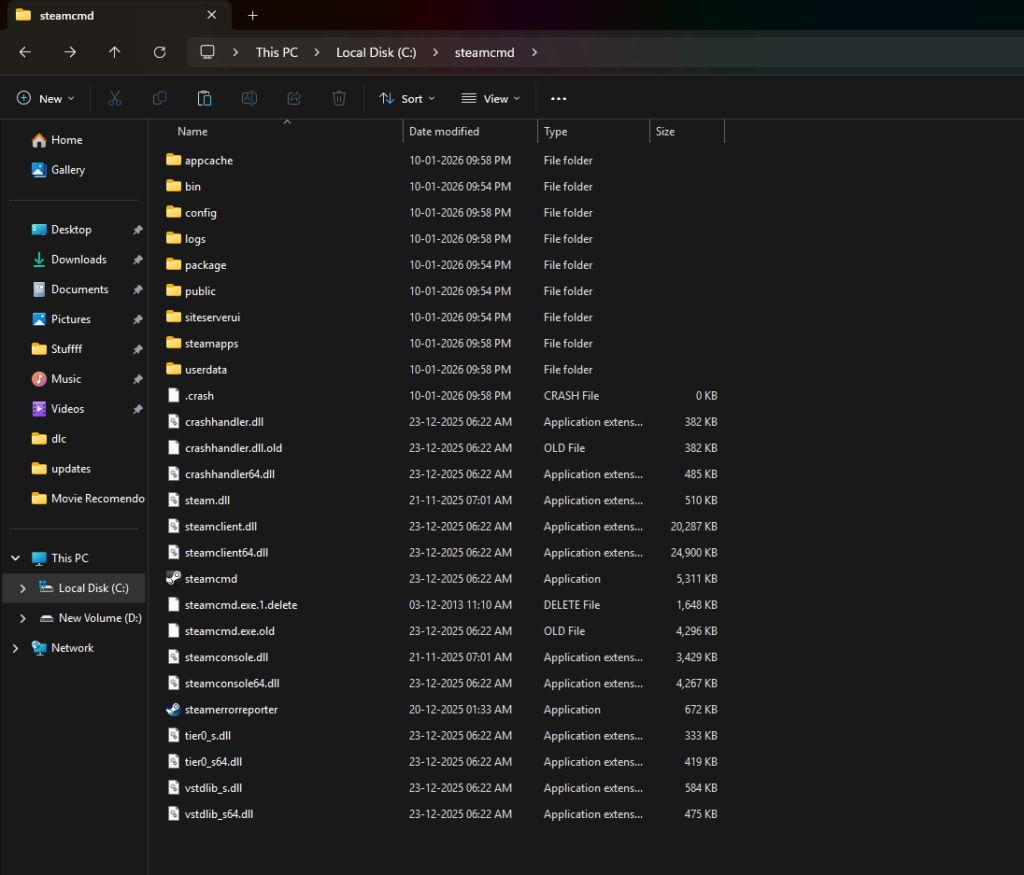
Step 2: Log in to SteamCMD
- Open steamcmd.exe again and use the following command to log in:
login anonymousStarRupture servers support anonymous login.

(This step is not necessay but this step checks if anonymous login is working).
- Close the sreamcmd window.
Step 3: Install Server Files via SteamCMD
- Create a .bat file with the following command:
C:\SteamCMD\steamcmd.exe +force_install_dir c:\StarRuptureDS\ +login anonymous +app_update 3809400 validate +quit- Name this file StarRupture_updater.bat
(Since this batch file specifies the directory of steamcmd you can place this file anywhere but it is recommended to place this file in either C:\SteamCMD or c:\StarRuptureDS)
- Now run this script to download the StarRupture Dedicated Server (App ID: 3809400) in C:\StarRuptureDS directory

You can use this script again to update your servers when needed.
Step 4: Configuring Server Start Parameters (IP & Ports)
- Go to C:\StarRuptureDS
- There edit “SRServerWithLog.bat” file using the following:
start .\StarRuptureServerEOS.exe -Log -MULTIHOME=0.0.0.0 -Port=7777 -QueryPort=27015 -ServerName="abc"- Ensure 7777 (UDP) and 27015 (UDP) are open in your router and Windows Firewall.
(Note- Adjust server name as desired. Some players may not need “-MULTIHOME” at all so you have to configure that yourself)
Step 5: Initializing the Session
StarRupture starts its servers in an Idle state.You must manually load it or start a game using the in-game admin panel
- Run SRServerWithLog.bat and wait for it to stablize and keep the batch file running.
- Launch StarRupture on your PC.
- In the Main Menu, click Manage Server

- Enter your server’s IP (To find the internal IP us ipconfig in windows command prompt. To find your external IP use https://www.whatsmyip.org/.)
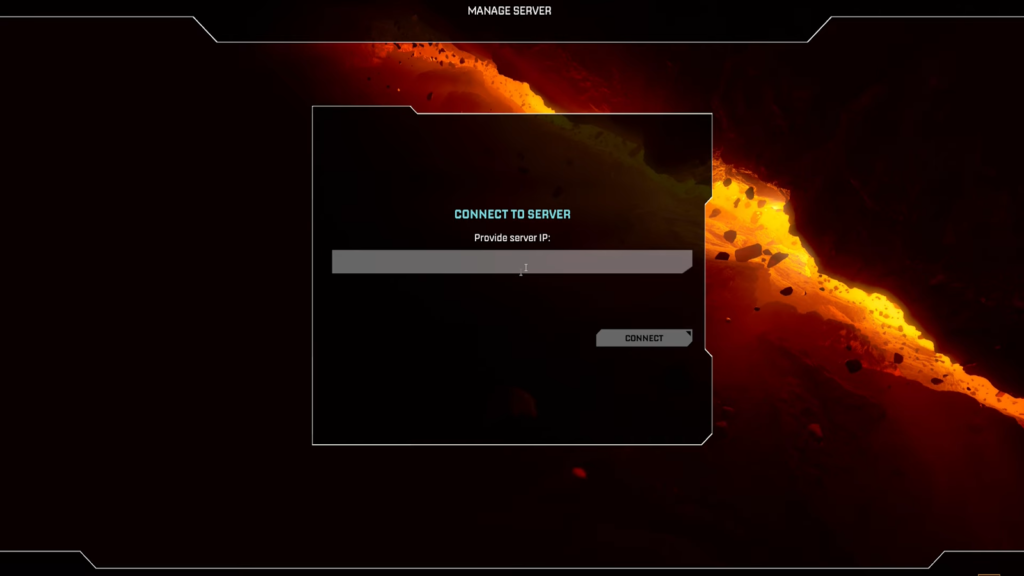
- Set an Admin Password when prompted.

- Select the New Game option, select a Session Name, and click Start Game. If successful, you will get a confirmation.


Step 6: Joining the Server.
Once the session is initialized:
- Go to Join Game > Dedicated Server.
- Enter the IP and the Password
Frequently Asked Questions (FAQs)
- Do I need to buy a second copy of StarRupture to run a server?
- No. The server uses login anonymous via SteamCMD, you can download and run the server files without owning the game.
- Can I run the server and play the game on the same computer?
- Yes, use your Internal IP to join your own server locally, while your friends use your External IP.
- What does the -MULTIHOME parameter do?
- This tells the server which network interface to use. Setting it to 0.0.0.0 tells the server to listen on all available network adapters.

