

EA Sports FC 25 is out now, and fans have already started teaming up with their friends to enjoy their favorite modes with the new 5v5 Rush. However, some unfortunate players encounter several issues and errors with the game. One of the common errors many players report is the “DirectX Failure” error. This particular error indicates that the game cannot render graphics or interact with your system’s hardware. Thankfully, there are several steps you can take to resolve this error.
How to Fix EA FC 25 DirectX Failure Error
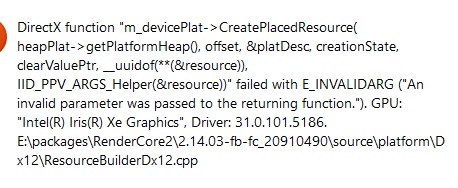
We have reviewed several forums and collected all effective workarounds so that you can enjoy the game without the DirectX failure error in EA FC 25.
1. Switch the Game to Windowed Mode
The very first and one of the easiest workarounds you should try is to switch the game to Windowed mode. This simple method will help to fix the DirectX failure error. Here is how you can do it:
- Open up the EA FC 25 and go to the Start Menu
- Press Alt + Enter to switch the game to Windowed Mode
2. Modify the MachineGuid in the Windows Registry
One of the players suggests this method and it has worked for several players so give this solution a try to resolve the error. Here are the steps to do this:
- Press the Windows key + R to open the Run dialog box
- Then type regedit and press Enter
- In the Registry Editor, go to the following path:
HKEY_LOCAL_MACHINE\SOFTWARE\Microsoft\Cryptography
Before making changes, it’s important to back up the original value:
- Now, find the MachineGuidkey on the right side and right-click on it
- Choose Export to save a backup
- Next, double-click MachineGuidkey and replace the current value with the following:
d1eb246e-6243-4460-a88e-5d4e52b1ef6b
- Click OK to save the change
- Once editing is done, reboot your PC.
3. Repair Game Files
Any missing or corrupted game files can be the root cause of DirectX failure error in FC 25 so the next workaround we suggest is to repair such game files. To do that:
- Go to Steam Library
- Right-click on the game
- Go to Properties
- Then, click on Local Files
- And click on Verify integrity of game files
- Once the scanning process is done, relaunch the game and the error should be fixed now.
4. Update Your Xbox Controller (For Xbox Users)
Some Xbox users have managed to fix this error simply by updating their Xbox controller. To do that:
- Go to the official Microsoft Store on your Windows PC and search for Xbox Accessories. This app allows you to manage and update your Xbox controller. Download and install it
- Once the app is installed, plug your Xbox controller into the PC using a USB cable or you can also connect it via Bluetooth
- Then, open up the Xbox Accessories app. If a firmware update is available for your controller, then click on Update
- After updating, relaunch the game and hopefully, the error should be fixed now.
5. Update Your Graphics Drivers
Sometimes, your graphics drivers get corrupted and that causes several issues with the game including DirectX errors. So, it is always advisable to update your graphics drivers. For this, visit your GPU manufacturer’s website (NVIDIA, AMD, or Intel) and download the latest drivers. Furthermore, you can also use the GeForce Experience(NVIDIA) or Radeon Software(AMD) applications to detect and update your drivers automatically. After installing the latest version, make sure to reboot your PC once.
6. Install the Latest Version of DirectX
DirectX is a very important suit required by many Windows games including FC 25. So, always ensure that it is also updated to the latest version as it helps to repair any missing or corrupted game files. To update it, visit the official Microsoft DirectX page and get the latest version. Make sure to reboot your PC once after updating DirectX files.
That’s all for this guide on how to fix the EA FC 25 DirectX failure error.
