
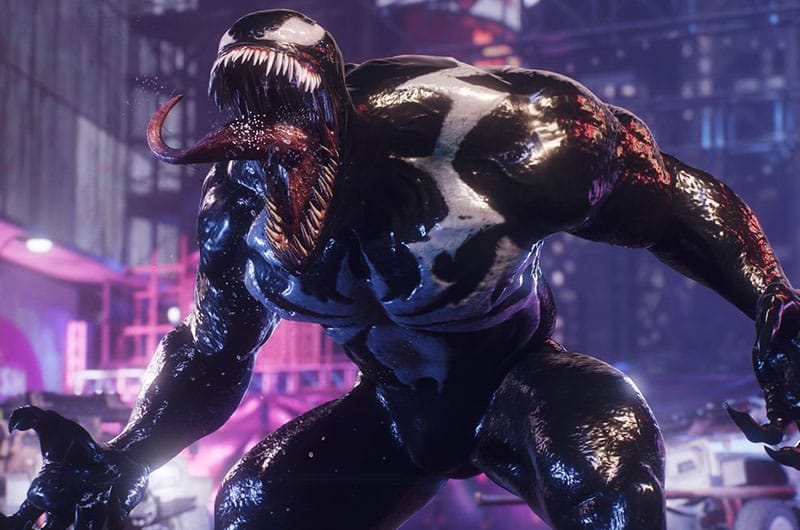
Marvel’s Spider-Man 2 is the latest action-adventure game developed by Insomniac Games and published by Sony Interactive Entertainment. Although this game offers excellent visuals, bigger playable area, and improved combat mechanics, some glitches disrupt the overall gaming fun. One of the common issues we found is the graphics driver crashing. According to reports, players have already installed the latest drivers on their system and they still experience this issue. If you are also facing the same issue, this guide will help you fix the graphics driver crash problem in Marvel’s Spider-Man 2.
How to Fix Marvel’s Spider-Man 2 Graphics Driver Crash Issue
Below we have collected all possible solutions to fix the graphics driver crash problem in Marvel’s Spider-Man 2.
1. Downgrade Drivers
One of the first solutions suggested by several players is to downgrade drivers. Although the latest drivers improve the overall performance, they can sometimes create issues. So, downgrading to an older version like 566.36 can help to fix graphics driver crashing issues. Follow the below steps to do this:
- Visit the official NVIDIA Driver Download Page.
- Enter your GPU model like RTX 4080 and operating system details
- Find Driver 566.36 in the list of available versions
- Download the driver to your PC, save it, and then relaunch the game.
2. Change These Settings
Some of the game settings like Ray Tracing, DLSS, and Frame Generation can significantly strain the GPU. Trying to reduce or disable the below features can help to stabilize the game.
- Reduce Ray Tracing: Go to the in-game settings and lower Ray Tracing from “Very High” to “High”. If that doesn’t work, try disabling Ray Tracing entirely.
- Disable DLSS Ray Reconstruction: Go to the Graphics menu, and turn off DLSS Ray Reconstruction. Additionally, try switching to a lower DLSS quality setting, like “Balanced” or “Performance.”
- Disable Frame Generation: Find the Frame Generation setting and turn it off.
Once done, save the settings and relaunch the game.
3. Change Display Mode
Display modes can affect how the game interacts with your GPU. Some players suggest switching display mode to “Exclusive Fullscreen Mode” which helped them to reduce crashing issues caused by resource conflicts. Here is how you can do it:
- Open the game settings
- Navigate to the Display section
- Select Exclusive Fullscreen Mode instead of borderless or windowed
- At last, save the changes and relaunch the game.
4. Capping the Frame Rate
The next solution suggested by some of the players is to cap the frame rate and adjust other settings. This will help to prevent the GPU from being overloaded. Here are the steps to do that:
- Open the NVIDIA Control Panel
- Go to Manage 3D Settings >> Program Settings
- Find the game or add it manually
- Set a frame rate cap like 60 FPS
- In the same settings, enable Vertical Sync (V-Sync) to reduce GPU strain
- Once done, relaunch the game.
5. Wait for the Official Patch
If none of the above methods work, then you simply need to wait for the official patch. A lot of players are running into this problem so hopefully, the developers should release a patch soon. Ensure to visit the developer’s official website or social media pages for the latest announcements.
That’s all you can try fixing Marvel’s Spider-Man 2 graphics driver crash issue.
