
If you’re trying to play Battlefield 6 but keep getting the error message “The application was unable to start correctly (0xc0000604)”, you’re not alone. This problem usually happens because of Windows security settings, antivirus blocks, or account issues. The good news is, it’s fixable. In this guide, we’ll walk you through a few easy methods to get the game running again starting with the most common solution and moving on to others if needed.
How to Fix “The Application Was Unable to Start Correctly (0xc000000604)” Error
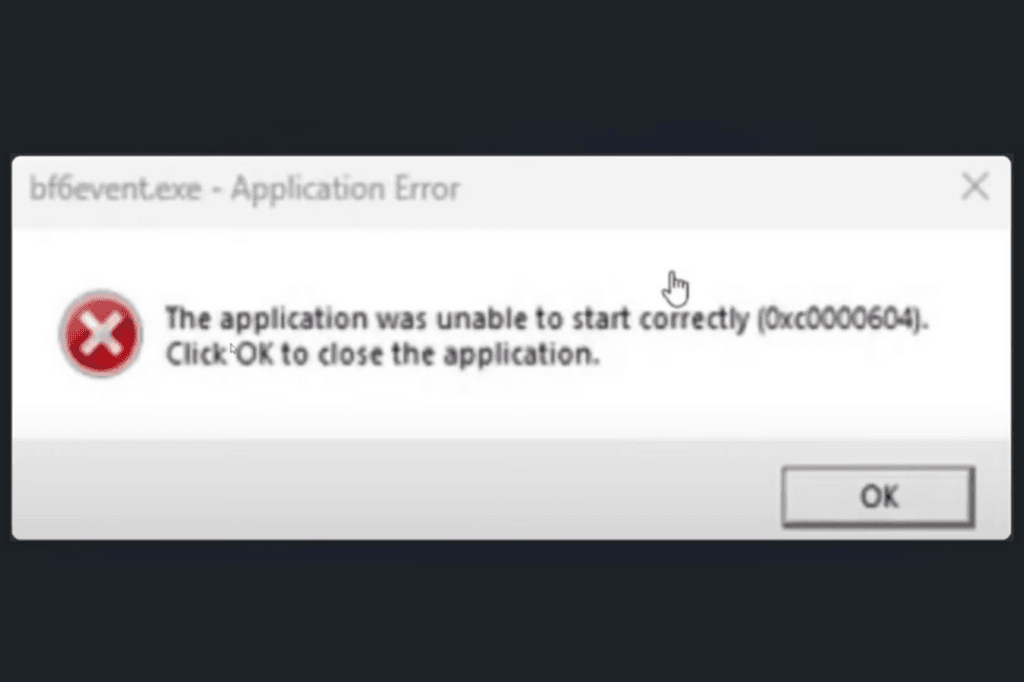
If your game won’t launch and you’re getting the 0xc000000604 error, don’t worry. Here are some methods you can try to fix it. We’ll start with the most common fix and move to other options if needed.
1. Change Exploit Protection Settings for the Game
Windows’ built-in Exploit Protection can sometimes block certain games from running. Disabling it for your game can solve the issue.
- Open Windows Settings > Go to Privacy & Security.
- Click on Windows Security > App & Browser Control.
- Scroll down to Exploit Protection > Click Exploit Protection Settings.
- Switch to the Program Settings tab.
- Click Add a Program to Customize > Choose Choose Exact File Path.
- Navigate to your game’s installation folder:
- Steam: C:\Program Files (x86)\Steam\steamapps\common\[Game Folder]
- EA App: C:\Program Files\EA Games\[Game Folder]
- Steam: C:\Program Files (x86)\Steam\steamapps\common\[Game Folder]
- Select the game’s .exe file and click Open.
- In the popup, check Override System Settings for each option and turn them all OFF.
- Click Apply, then Yes to confirm.
Tip: If anything goes wrong, you can remove the game from Exploit Protection by going back to the Program Settings tab, selecting it, and clicking Remove.
2. Allow the Game in Your Antivirus
Your antivirus might be blocking the game. Whitelist the game’s .exe file to prevent this.
For Windows Security:
- Open Virus & Threat Protection.
- Scroll down to Manage Ransomware Protection.
- Click Allow an App Through Controlled Folder Access > Yes to confirm.
- Click Add an Allowed App > Browse All Apps.
- Select your game’s .exe file and click Open.
- Repeat the process for your game’s anti-cheat launcher if it has one.
For Third-Party Antivirus: Open your antivirus settings and add the game’s .exe file to the whitelist/exceptions list.
3. Create a New Windows User Account
If the problem persists, try running the game on a fresh Windows profile.
- Open Windows Settings > Go to Accounts.
- Select Other Users > Add Account.
- Click I Don’t Have This Person’s Sign-In Information > Add a User Without a Microsoft Account.
- Enter a username and password (optional), then click Next.
- After the account is created, click on it > Change Account Type > Set it to Administrator.
- Sign out of your current account and log into the new one.
- Try running the game again.
One of these fixes should get your game running again. Most players find that adjusting Exploit Protection or whitelisting the game in antivirus solves the problem. If not, the new user account method is worth trying.
