
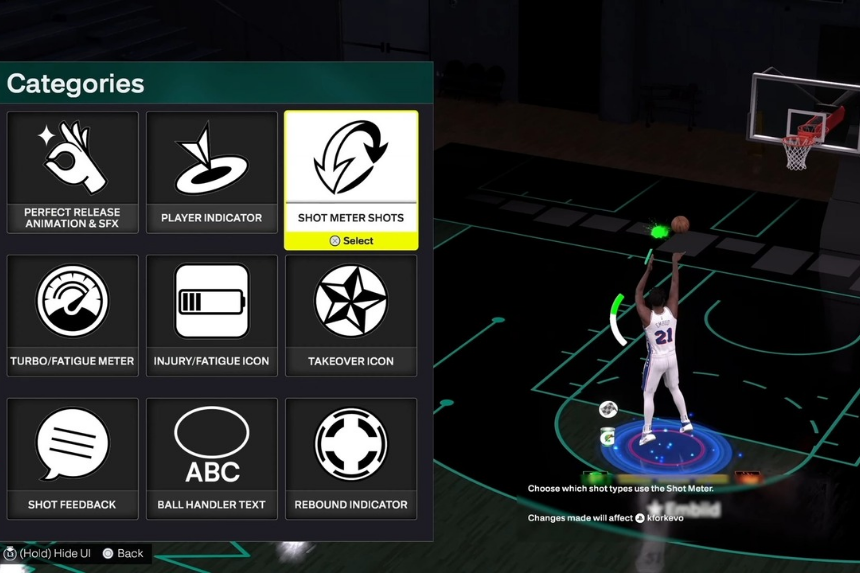
Adjusting your HUD in NBA 2K26 enables you to fine-tune the shot meters and player indicators to better suit your style of play. This guide will walk you through on how to access the shot meters, player indicators, fatigue, and injury bars, as well as the shot feedback settings that tailor the visuals on the screen, and result in improved and enhanced MyTeam and other game mode experiences.
Accessing HUD Customization
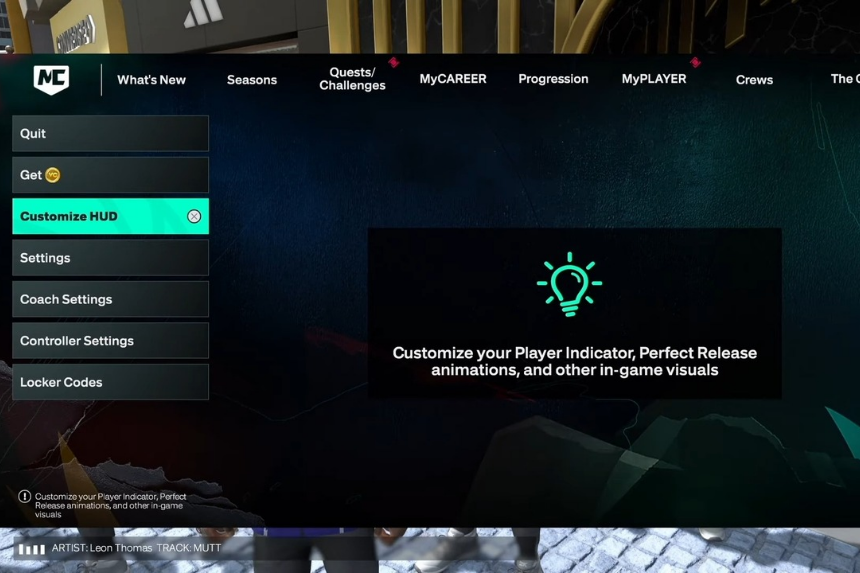
By adjusting your HUD in NBA 2K26, you can modify the visuals of whichever shot meters, player indicators, and other on-screen elements you like to better fit your style of play in MyTeam and other game modes.
In MyTeam, go to the Options/Quit menu and select Customize HUD. In other modes, you can access the same options through the Features menu. The settings function the same across all modes, giving you flexibility to tailor your gameplay experience.
Key HUD Features
Perfect Release Animation and SFX allow you to see your opponent’s green shots, helping you track their performance. You can also select different graphics and sound effects according to your preference.
The Player Indicator shows an icon under the player, which is purely cosmetic. You can customize its graphic, color, and size to match your style.
Shot Meter settings control visibility for shots, layups, and free throws. Turning off the shot meter can give a boost to jump shots, while leaving it on may help with layups where timing is more critical due to animation differences. The meter’s appearance and placement can also be customized.
Turbo/Fatigue and Injury/Fatigue indicators display stamina, adrenaline bars, and player condition, helping you track energy levels and injuries. The Takeover Icon shows your player’s takeover status and can be toggled on or off.
Personalization and Recommendations
Shot Feedback can be set to Simple, User Only, Free Throws, or All Shots. This displays green shots and other information, with customizable placement on the screen.
Ball Handler Text and Ability Icons provide information such as player names, numbers, positions, and abilities. These can be turned on, off, or customized based on your preference.
The Gameplay HUD and Rebound Indicator show extra game information, including rebound timing. These can also be adjusted to your comfort level.
For recommendations, turning off the shot meter for jump shots can provide a boost, while keeping indicators like Turbo/Fatigue and Takeover active is helpful for gameplay information. All other settings can be customized to your comfort, making your HUD both functional and visually comfortable.
