
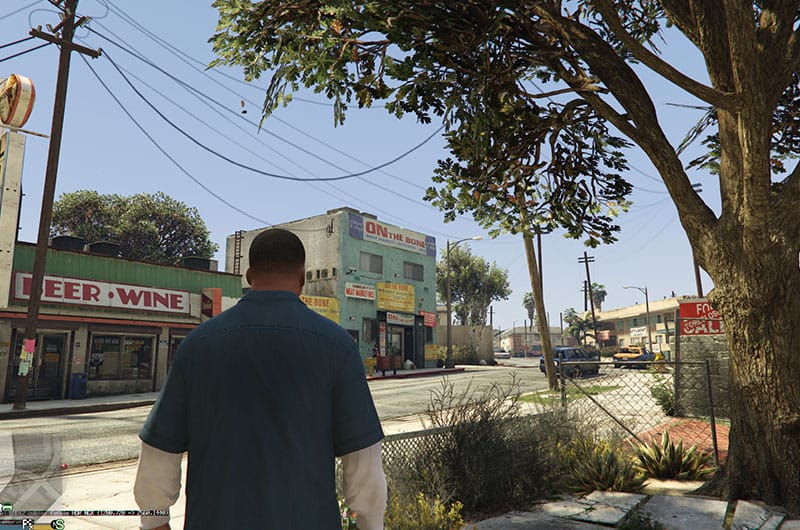
Grand Theft Auto V (GTA 5) Enhanced is the latest edition for PC. This new edition includes exclusive vehicles from Hao’s Special Works, Karin S95, Coil Cyclone ll, and several other stuff. Unfortunately, a lot of players are unable to access the game as they are running into an error that reads – “This Rockstar Games account doesn’t own Grand Theft Auto V Enhanced”. It looks like players are mostly getting this error on the Epic Games client and not Steam. This is annoying because players have already owned the game via Epic Games and are still receiving this error. Thankfully, this comprehensive guide will show you all the working solutions to resolve it.
How to Fix Error This Rockstar Games Account Doesn’t Own Grand Theft Auto V Enhanced
We have checked multiple threads and comments shared by players to fix this error and gathered all of the working solutions here for you. Let’s find out how to fix the Error This Rockstar Games account doesn’t own Grand Theft Auto V Enhanced.
1. Sign Out and Sign Back In
One of the first and easy methods that worked for many players was to sign out and sign back in. Sometimes, logging out and back in can refresh the account authentication and resolve this error. Here is how to do it properly:
- Open Epic Games Launcher and click on your profile icon in the top right corner
- Click Sign Out and close the Epic Games Launcher
- Open Rockstar Games Launcher and log out from there as well
- Reboot your PC
- Open Rockstar Games Launcher and login again
- Open Epic Games Launcher and log in again
- Try relaunching the game
2. Launch the Game from Rockstar Games Launcher Instead of Epic Games
If Epic Games is not detecting the game properly, try launching it directly from the Rockstar platform. Some players have managed to resolve this error by doing this, so give it a try.
3. Repair Game Files
Any missing or corrupted game files can be the root cause of this error so in this workaround, we will repair game files through Epic Games Launcher. To do that:
- Go to Epic Games Launcher’s Library
- Find Grand Theft Auto 5 Enhanced
- Click on the three dots next to the game
- Select Verify and wait for the process to complete
- Once done, reboot your PC and try relaunching the game
4. Rename the GTA 5 Installation Folder
If the error is still appearing, try renaming the installation folder’s name. This will force Epic Games to revalidate the installation and may resolve the error.
- Open File Explorer and go to the game’s installation folder
- Right-click on the GTAV folder and select Rename
- Change the name from GTAV to anything else like GTAVNEW
- Open Epic Games Launcher
- Try relaunching the game
- If prompted, find the installation folder and select the renamed folder.
5. Check Windows Firewall Settings
At times, in online games including GTA 5 Enhanced, a firewall block may prevent Rockstar Launcher from properly verifying the game. So, if you try to allow the game through the firewall, it will help to fix the issue. Here is how you can do it:
- Open up the Control Panel on your PC
- Go to System and Security >> Windows Defender Firewall
- On the left, click on Allow an app or feature through Windows Defender Firewall
- Scroll down and find Rockstar Games Launcher and Grand Theft Auto V
- Make sure both Private and Public boxes are checked
- If you cannot find them there, click on Change Settings, then Allow another app, and browse to add:
- RockstarGamesLauncher.exe
- GTA5.exe
- Click Ok, reboot your PC, and try relaunching the game
6. Reinstall Rockstar Games Launcher
If Rockstar Launcher is not detecting the game properly, then try to uninstall and reinstall the game. This will reset authentication and fix the error.
- Press Windows + R, type appwiz.cpl, and press Enter
- Find Rockstar Games Launcher, right-click it, and select Uninstall
- Download the latest version of Rockstar Games Launcher from the official Rockstar website: https://www.rockstargames.com/downloads
- Install Rockstar Launcher and log in with your account
- Try relaunching the game.
That’s all for this guide on how to fix the error “This Rockstar Games Account doesn’t own Grand Theft Auto V Enhanced”.
