

Avowed has finally been released on Gamepass, and the game has already attracted a large player base. Unfortunately, many players are unable to launch the game on Game Pass. If you have been struggling with issues like the game crashing or not launching on Gamepass, the below fixes can help.
Fix Avowed Not Launching, Opening, or Starting Xbox Game Pass
Here are all the solutions you can try to fix Avowed’s Failure to Launch, Open, or Start the Game Pass.
Update the OS
If you are unable to launch Avowed via the Xbox Game Pass app, the first step you should take is to update the OS. Here is how to update the OS:
- Press Windows key + I and go into Settings
- Then, into Windows Update > Check for Update > Download and Install the Update
- Reboot the PC
Verify and Repair Game Files
One of the main reasons for the crash may be the corruption of the game files. You can easily verify and repair to fix the issue. Here is what you need to do.
- Open the Xbox Game Pass library and click on Avowed
- Click on the three dots next to Play and choose Manage
- Go into Files and click on Verify and Repair.
- Wait for the process to complete.
Launch the Game with Admin Permission
Lack of permission can also lead to games crashing and issues launching as the game lacks permissions. I want you to first create a desktop shortcut for the game and then, launch as administrator. Here are the steps you need to follow.
- Open the Xbox Game Pass library and click on Avowed
- Click on the three dots next to Play and choose Manage
- In General, choose to Create a Desktop Shortcut
- Now, go to the Desktop and right-click on the game
- Choose Run as administrator
Clean Install the GPU Drivers
Go to the official website of the GPU manufacturers [AMD & NVIDIA] and download the latest driver available for your installed GPU. When installing ensure that you perform a clean install. This will remove the old driver completely and then install the new one.
Repair and Reset the Gaming Services, Xbox App, and Avowed
If the game is still failing to launch, the next fix you can try is to repair the two apps and if that fails, reset the applications. Here are the steps you need to follow.
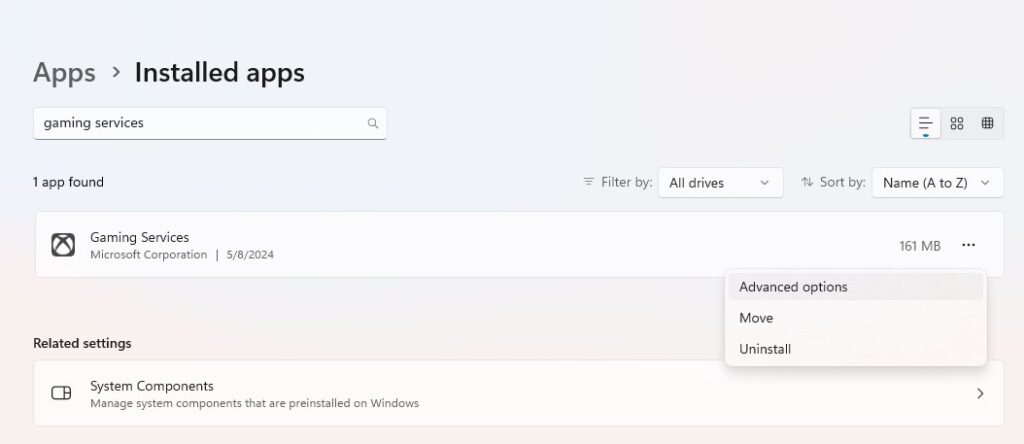
- Press Windows Key + I to open Settings
- Apps > Installed Apps > Search for Gaming Services > Advanced Options
- Click on Repair
- If the error still occurs or Avowed still fails to launch, click on Reset.
Perform the same steps for the Xbox app and Avowed. In the Installed Apps, search for the Xbox App and perform the above steps. Next, search for Avowed and perform the same steps.
Eliminate Xbox Account Issues
Make sure that you are using one MS account to log in to the Xbox app and the Microsoft Store. Also, ensure that this account has an active game pass subscription. Open both apps and log in with the same account.
Set Correct Date, Time, and Region
The next fix is to set the date and time. For this, open Settings > Time & Language > Date & Time > Toggle On both the options to set the zone and time automatically. Next, click on Sync Now. Next, click on Langauge & Region. Ensure that the correct Region is set.
Reinstall the Games Services
The next fix you can try is to reinstall the game’s services. For this, you need to first uninstall the game’s services and then re-download. Here are the steps you need to follow.
- In the Windows Search, search for Powershell, choose to Run as Administrator
- Paste the below command in the PowerShell and hit Enter
get-appxpackage Microsoft.GamingServices | remove-Appxpackage –allusers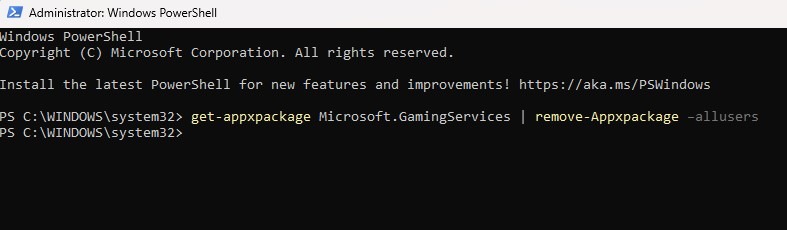
Next, reboot the PC and launch the Xbox app. It will update and you should be able to play Avowed without launch issues.
If Avowed is still failing to launch, open the Powershell as administrator again, paste the below commands and hit enter.
Get-AppxPackage -AllUsers| Foreach {Add-AppxPackage -DisableDevelopmentMode -Register “$($_.InstallLocation)\AppXManifest.xml”}Wait for the process to complete. If you see some errors, avoid them. Once the process is complete, reboot the PC and attempt to play the game.
Download and Install the Xbox Identify Provider
Go to this link and download the Xbox Identity Provider. This is a free app that helps your PC connect to the Xbox Live. Once you have downloaded the app, install it.
Turn On Offline Permissions in the Microsoft Store
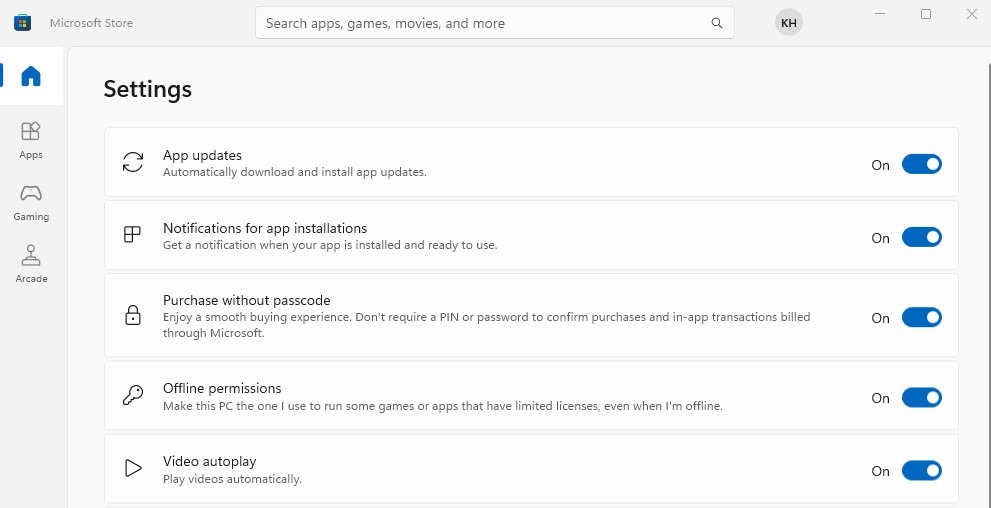
In the Windows Search, look for and open the Microsoft Store. Click on your Profile Icon and go into Settings. You should now see the Offline Permissions option, ensure that it’s turned on. Check if the game works after applying this fix. By default, this feature should be on.
Disconnect All External Devices
External devices can confuse certain games and make them act up. So, make sure that all external devices such as vJoy, Hotas, Joystick, Pedals, Razer Tartarus gamepad, Logitech Wheel, Steering wheels, PS4/PS5 Controller, etc are disconnected.
Launch the Game in a Clean Boot Environment
RGB software and overlays for GeForce Experience and Discord, etc. among other programs can cause issues with games. Therefore, launch the game in a clean boot environment. Here are the steps you need to follow:
- Press Windows Key + R and type msconfig, hit Enter
- Go to the Services tab
- Check Hide all Microsoft services (Very Important)
- Now, click Disable all
- Go to the Startup tab and click on Open Task Manager
- Disable one task at a time and restart the system.
Delete Microsoft Store Cache
To delete the MS Store cache, you need to go to C:\Users\Username\AppData\Local\Packages\Microsoft.WindowsStore_8wekyb3d8bbwe\LocalCache
Delete the LocalCache Folder and reboot the PC. Now, try to launch the game and see if Avowed is still failing to launch.
Ensure Necessary Services are Set to Automatically Run
If certain services are running as optimal, it can issue with Avowed not launching on the Xbox app. Here are the servers you need to check:
IP Helper
Xbox Live Auth Manager
Xbox Live Game Save
Xbox Live Networking Service
Gaming Services
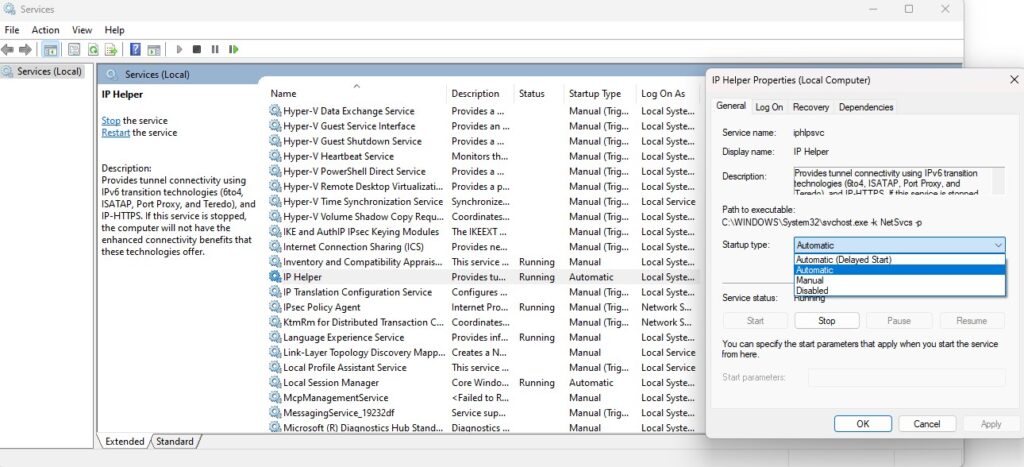
- In the Windows Search, type Services and click on Run as administrator
- Among the list of Services, find the above 5 one by one and ensure that the Startup Type is set to Automatic
- If it’s not set to Automatic, right-click on the Service > Properties
- Set the Startup Type to Automatic > Apply > OK.
Run sc.exe stop licensemanager in CMD
If none of the above solutions have worked, open the command prompt as an administrator and enter the command. Here are the steps you need to follow.
- In the Windows Search, type cmd and choose Run as administrator
- Paste the below command and hit Enter
sc.exe stop licensemanagerOnce the command is processed successfully, reboot the PC and try to run Avowed.
Reinstall the Game
Finally, if none of the above solutions have worked, your best hope is to reinstall the game.
