
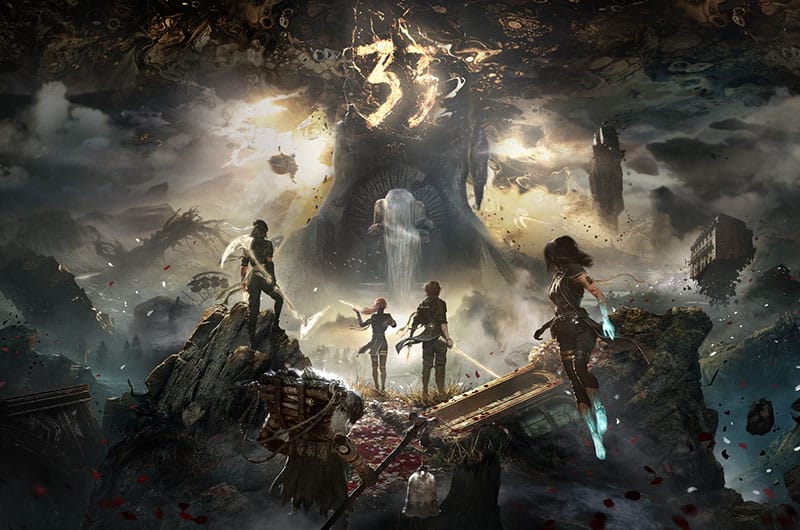
Clair Obscur Expedition 33 is finally out and players are already enjoying it to the fullest. According to reviews, the creative turn-based combat system of this game is brilliant and keeps players engaged all the time. However, like many other modern online games, this version is also not free from multiple bugs and errors. One of the common errors we found is the Fatal error. Players report that they have already downloaded the latest version of the game but still they are running into this annoying error. Thankfully, we have collected all possible solutions for you in this guide. Let’s find out how to fix the Clair Obscur Expedition 33 fatal error.
How to Fix Clair Obscur Expedition 33 Fatal Error
Like many other players, if you are also getting a constant “Fatal error” while playing Clair Obscur Expedition 33, then worry not and try all the below-mentioned workarounds one by one.
1. Fresh Install of Windows 11
First of all, try installing Windows 11 which will help to resolve crashing and performance-related issues. Here is how you can do it in a proper way:
- First of all, back up your personal files to an external drive or cloud storage
- Download the Windows 11 Installation Media Tool from the official Microsoft site.
- Create a bootable USB and boot from it.
- Select “Custom Install” and format your system drive for a clean installation.
- Once the installation process is complete, reinstall GPU drivers, chipset drivers, and Windows updates.
- At last, reinstall the game via Steam and you should be able to play the game without the Fatal error.
2. Update Motherboard BIOS
In case your BIOS has been outdated, it can cause several compatibility issues, especially with UE5 games and high-end CPUs. Here is how you can update it.
- First of all, make sure the model of motherboard your system has
- Then, go to your motherboard manufacturer’s support page
- Download the latest BIOS update file and read the instructions carefully
- Flash the BIOS via the BIOS interface
- Reboot the system and test the game
3. Downgrade or Roll Back GPU Drivers
Sometimes, the latest GPU drivers bring several bugs into the game that eventually crash the game with the Fatal Error. So, the next solution suggested by several players is to downgrade or roll back GPU drivers. Follow the below steps:
- Use DDU (Display Driver Uninstaller) in Safe Mode and uninstall current drivers.
- Then, download a previous stable driver version:
- NVIDIA users: Try 552.42
- AMD users: Try 24.2.1 instead of 25.3.1
- Install the older driver and reboot
- Once done, try running the game.
4. Run as Administrator & Disable Fullscreen Optimization
Fullscreen optimization while playing online games including Clair Obscur Expedition 33, sometimes causes conflicts with UE-based games. If that is the case, try running the game as admin as it ensures the game has all the necessary privileges to run it smoothly on your device. Here are the steps to do this:
- Go to the folder where the game is installed on your PC.
- Then, right-click on the game >> Properties >> Compatibility tab
- Check the below 2 points
- Running this program as administrator should be checked.
- Disable fullscreen optimizations should be checked.
- After checking both of them, click on Apply and Ok.
- Relaunch the game and check if the issue is resolved.
6. Submit Crash Logs to Developers via Feedback Form
If nothing works and you are still receiving the same error, then the last option is to submit crash logs and submit them in the feedback form. This will help the developers to fix the issue.
That’s all for this guide on how to fix the Clair Obscur Expedition 33 fatal error.
