
Upgrading your weapons and gear in Avatar: From the Ashes is an important part of getting stronger as you play. The DLC introduces the So’lek menu tab, which works a lot like the main game but with a few helpful changes that make upgrading easier and less confusing. In this guide, we’ll tell you how upgrades work, what materials you need, and how to use tools like the Hunter’s Guide and Material Tracker.
How to Upgrade weapons and gear in the So’lek menu tab
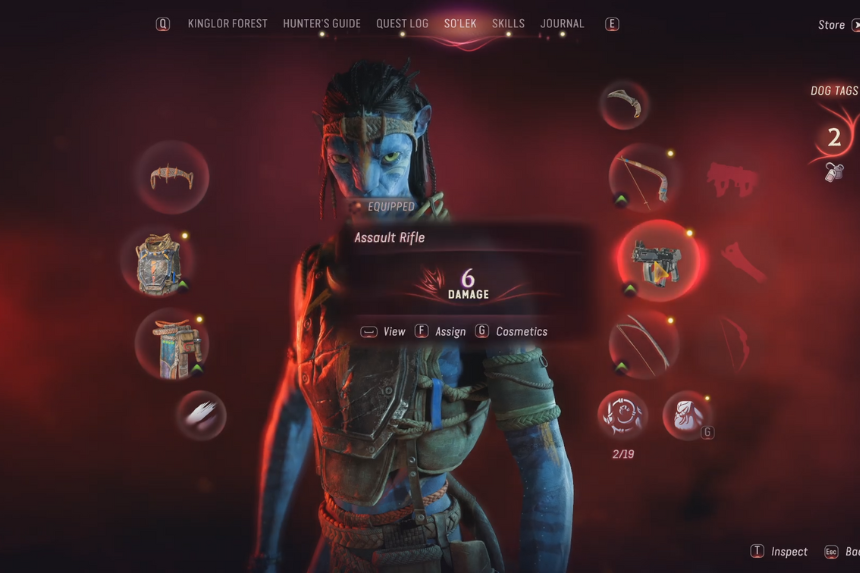
To upgrade your gear, open your Character Page and switch to the Solex page. If you see a green upgrade arrow on an item, that means you already have all the materials needed to upgrade it.
Just like the main game, Solex gear can be upgraded in stages:
- Fine
- Superior
- Exquisite
The materials required for the next upgrades are indicated by each piece of equipment. Additionally, it is possible to change the gear from the upgrade window, which speeds up the checking of requirements. In this DLC, there are no longer any quality tiers fixed to the materials. Hence, it is easier to collect.
Clothing Materials: RDA Components

For clothing upgrades, you’ll mainly need:
- RDA Components (also called spare parts)
- Advanced Components for higher upgrades
- A third, even rarer component for Exquisite upgrades
Always grab these when you see them, as they’re used across multiple gear pieces. Weapons work the same way as gear.
Using the Hunter’s Guide to Find Materials
If you’re missing materials, press L1 (on PlayStation) to open the Hunter’s Guide directly from the upgrade screen.
The Hunter’s Guide:
- Shows where materials come from
- Let’s you pin materials for tracking
Once you scan a material using Na’vi senses, you can:
- Pin it in the Hunter’s Guide
- Track it on the map
This helps a lot when farming specific upgrade items. The DLC adds a very useful feature called the Material Tracker. Here’s how it works:
- Open the map
- Enable Show Material Tracker (top-right)
- Press Down on the D-Pad (PlayStation)
The game will read out where the material can be found. Then it will highlight a suggested region on the map. The quality tiers of materials are removed, and the tracker displays merely the location of the item instead of its quality. The icon of the material becomes highlighted when you are near the material. The highlight disappears if you move far away.
