
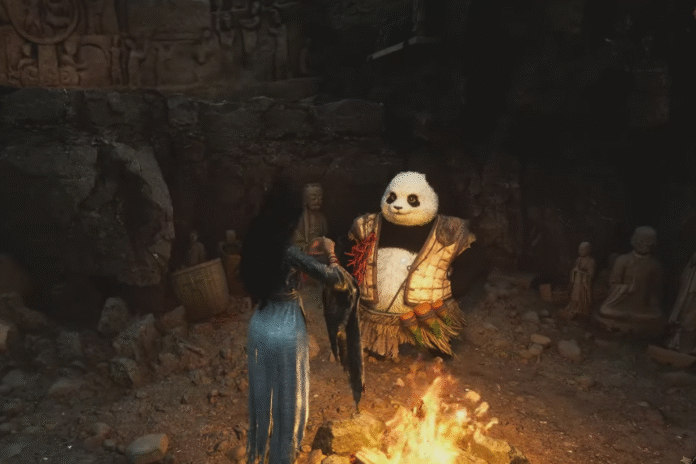
Wuchang: Fallen Feathers is the latest Soulslike action role-playing game developed by Leenzee and published by 505 Games. Although a lot of fans describe the combat as fluid, fast-paced, dynamic, and flexible, some bugs and errors disrupt the overall gaming fun. One of the common issues we found in this game is the fatal error. According to reports, many players are unable to launch the game due to this annoying error. Thankfully, there are a few possible workarounds to resolve it. Now, without any further ado, let’s talk about how you can fix this problem.
How to Fix WUCHANG: Fallen Feathers Fatal Error
We know how frustrating it is when you are unable to enjoy the game due to bugs and errors, such as a fatal error in Wuchang: Fallen Feathers, but here we have gathered a few potential methods shared by players on various platforms.
1. Update to Nvidia Game Ready Driver 577.00 & Disable All Overlays
One of the first solutions suggested by a few players is to update your drivers to the Nvidia Game Ready Driver 577.00 and also disable all overlays. Follow the steps below to do this:
- Go to the NVIDIA driver download page
- Download and install Game Ready Driver 577.00 (latest stable version)
- Disable all overlays:
- NVIDIA Overlay: Open GeForce Experience >> Settings >> Turn off “In-Game Overlay”
- Steam Overlay: Right-click game in Steam >> Properties >> Uncheck “Enable the Steam Overlay”
- Discord Overlay: Discord >> User Settings → Game Overlay → Turn off “Enable in-game overlay”
- Restart your PC
- At last, relaunch the game.
2. Enable Disabled Monitors in Device Manager
The next solution that should work is to enable disabled monitors in Device Manager. Here are the steps to do this:
- Press Windows + X >> Open Device Manager
- Expand the Monitors section
- Right-click any disabled monitor and click Enable device
- Once done, restart your PC and relaunch the game.
3. Use DDU to Clean Install GPU Drivers
If you are still struggling to fix the error, try using DDU (Display Driver Uninstaller) to clean install GPU drivers. Follow the steps below:
- Download DDU (Display Driver Uninstaller) from the official website
- Boot into Safe Mode (Restart PC >> Hold Shift >> Advanced Options >> Safe Mode)
- Run DDU and select Clean and Restart for NVIDIA or AMD drivers
- Once restarted, go to NVIDIA or AMD and install the latest drivers
- Skip installing GeForce Experience if using NVIDIA
- Reboot your PC and relaunch the game.
4. Update BIOS
An outdated BIOS can also cause a Fatal error while accessing an online game, so it is always advisable to update the BIOS to the latest version.
NOTE: Updating BIOS can sometimes be risky, so you should only proceed further if you know how to do it properly.
- Go to your motherboard manufacturer’s website
- Download the latest BIOS version compatible with your board
- Follow the manufacturer’s exact instructions to update the BIOS
- Once done, reboot your PC and relaunch the game.
5. Lower Graphics Settings or Set to Windowed Mode
This is also one of the best solutions if the game starts but crashes in menus or while accessing gameplay. Try lowering graphics settings or setting the game to Windowed Mode.
That’s it for this guide on how to fix Wuchange: Fallen Feathers’ fatal error.
