

The “Disk Write Error” on Steam occurs when you try to install a new game or try to update a game. It means that Steam cannot write new files on the storage. You can encounter two types of error messages “An error has occurred while installing gamename” and “An error has occurred while updating Gamename” accompanied by the text “disk write error” in brackets. Here are all the fixes to resolve the Steam Disk write error.
Fix Disk Write Error Steam
One of the tricks to fix the disk write error is uninstalling Steam and the game and reinstalling everything from scratch. However, this should be your last resort when nothing else works as it’s time-consuming. Here are all the fixes that you can try to resolve the Steam disk write error.
Repair Steam Library
The first thing you should do is repair the Steam library. Steam has a feature you can use to perform the task and fixes any issue with the Steam files. Here are the steps you can follow.
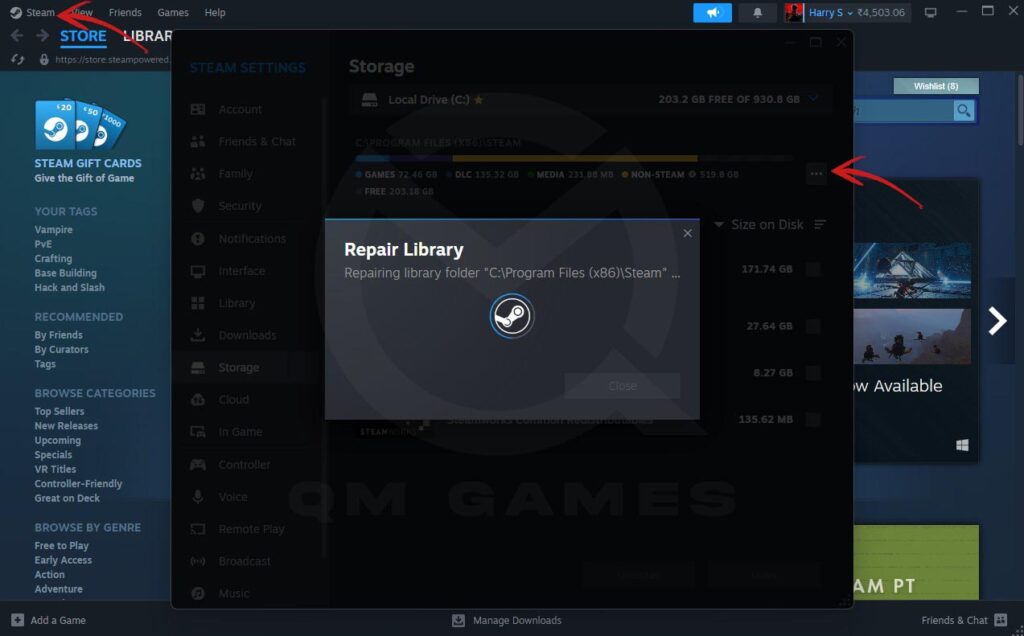
- Open Steam and click on Steam on the top-left corner
- Go to Settings > Storage
- Click on the three dots as shown in the above image
- Click on Repair Library
Ensure Appropriate Permissions for Steam
If you share the PC with others or you do not have the appropriate permissions that could be the reason the game is not able to write new files on the store. You can fix this problem by editing the permissions. To do this follow the below steps.
- Go to C:\Program Files (x86)\Steam (the drive may vary depending on where you installed the game)
- Right-click on the Steam.exe file and go to Properties > General
- Uncheck Read-only
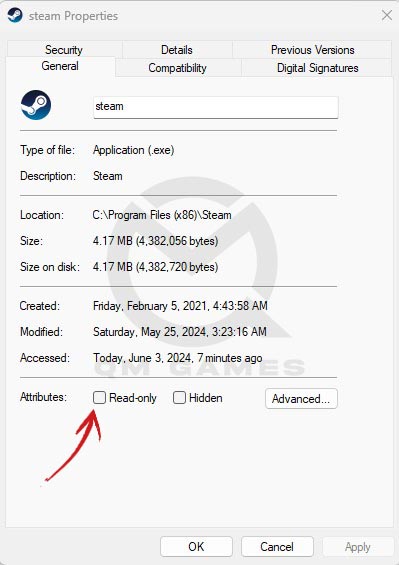
- Next, go to the Security tab
- Click on your username and ensure there are no checks on the Deny side
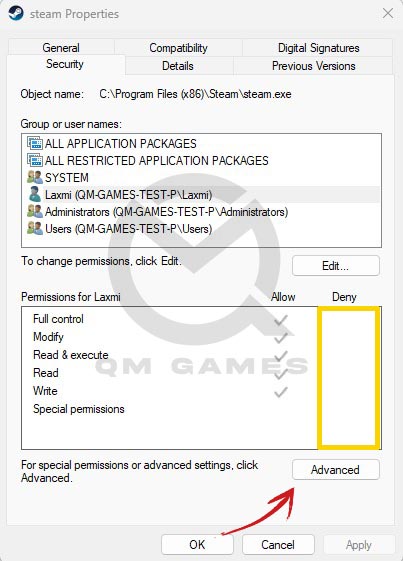
- If there are checks on the Deny side, click on Advanced
- Next, click on your username and click on Edit (If there is no edit option, comment and we will help you further)
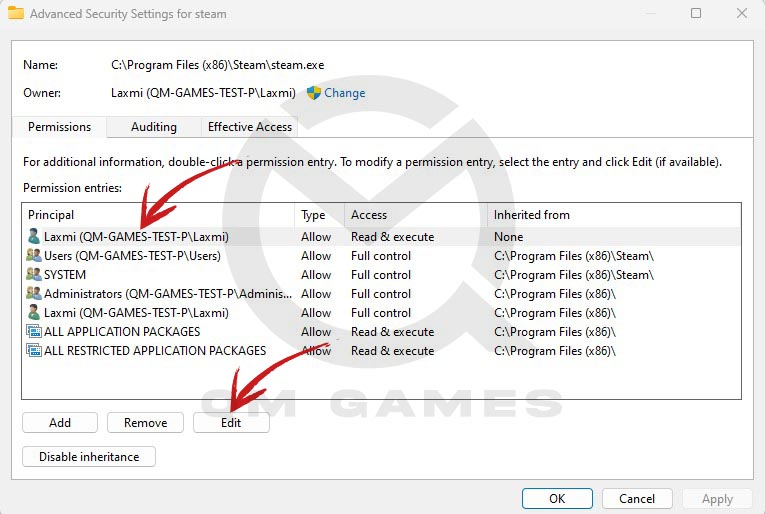
- Click on Full Control and click on Ok.
Run Steam with Administrator Permission
This fix is a recommendation by the game developers so it’s worth the try. It relates to privileges granted to the Steam Client, so running the client as administrator might solve the error.
- Go to the folder where you have installed the Steam client, it is usually installed here – This PC > Local Disk (C:) > Program Files (x86) > Steam
- Look for the file named Steam with the Steam icon and file type .exe
- Right-click on Steam > Properties > Compatibility > check Run as administrator > Apply > Ok
Clear Steam Download Cache
The next fix is to clear the Steam Download Cache. Open the Steam client and click on Steam in the top-left corner > Settings > Downloads > Clear Download Cache.
Change the Download Region in Steam
Often times the server of a particular region can be the cause of the issue. Hence, change the download region on the Steam client to resolve the Steam Disk Write Error. Here are the steps to follow.
- Launch the Steam client
- Go to Steam > Settings > Downloads
- Select a different region under Download Region
- When Steam Prompts to restart, select Restart Steam
- Now attempt to install the game.
Disable Antivirus or Windows Firewall
Often third-party antivirus or the Windows antiovirus/firewall that’s supposed to protect you starts blocking friendly programs. To troubleshoot the issue you must disable the Firewall or the antivirus. And if the game starts to work, you need to set an exclusion for Steam on the Firewall.
Delete Corrupt Files
Deleting corrupt files has proven to resolve the error for users. Here are the steps you need to follow.
- Open the path Steam/logs/content_log
- Locate and open “failed to write”
- Go to the path listed and delete those files.
Run Diskpart Command
If none of the above fixes have resolved the Steam ”disk write error”, you should try running the Diskpart command in Command Prompt. It will make the disk writable and allow you to install any game. Here are the steps you need to follow.
- Press Windows Key + R to open the Run dialogue box
- Type cmd and press Shift + Ctrl + Enter
- Confirm with Yes
- Type the following Command and hit enter after every command
- Type diskpart and hit Enter
- Type list disk and hit Enter
- Type select disk # and hit Enter(You should replace the # with the disk number seen above and the hard drive where the game is installed. If you have only one hard drive on your computer, the disk number will be 0. Check the result of list disk command and replace # with the number)
- Type attributes disk clear readonly and hit Enter.

3 Comments
i do not have the “edit” button in the steam exe permissions thing
try below:
Note: You need to check your desktop username. Click “System C:\Users. (Your desktop name will apear as first folder name)
1. First, right click any folder and click “Properties”.
2. Next, Click “Security Tab” and click Advanced.
3. Then, Click “Add” Button (located over “Disable Inheritance” Button)
4. Next, Click “Select a Principal”.
5. On the empty box, write your desktop name. then click OK.
6. On basic permision. Check Full Control. then click OK.
7. After all, click apply. and done, edit button now will appear on your Security Tab.
*If edit button only appear on specific folder, you can repeat this on another folder.
How do I find the disk number for an external hard drive?