
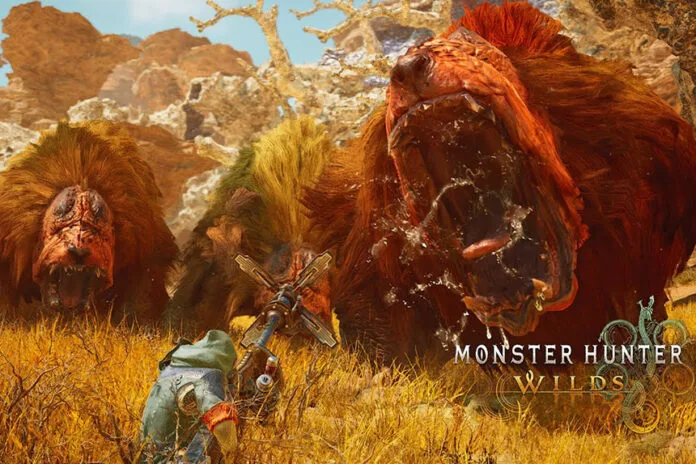
A massive number of players are currently enjoying the latest action role-playing game Monster Hunter Wilds. Unfortunately, a lot of players are encountering an annoying error: “Something went wrong”. If you have no idea about this error, this is one of the common errors and occurs in most of the modern online games including MHR. This specific error indicates a general issue with the functionality of the game often related to network connectivity, corrupted game data, or compatibility issues. Thankfully, this error is fixable and here we show you all potential methods to resolve it.
How to Fix Monster Hunter Wilds Something Went Wrong
We have checked several threads and comments and gathered all possible and working solutions for you to fix Monster Hunter Wilds “Something went wrong” error.
1. Reinstall Steam Without Deleting Games
This is one of the most recommended steps to fix the error as it worked for many players. Sometimes, corrupted Steam installation files can be the root cause of this error so we will start our troubleshooting steps with reinstallation of Steam without deleting games. Here is how you can do it:
- First of all, close Steam completely and ensure steam.exe is not running in Task Manager
- Go to C:\Program Files (x86)\Steam (or wherever you installed Steam)
- Delete everything except the following folders/files:
- steam.exe
- steamapps (contains installed games)
- userdata (saves and settings)
- Double-click steam.exe to relaunch Steam
- Log in with your Steam credentials
- Now, relaunch the game and the error should be fixed now.
2. Restarting Steam
The next thing you should do is restart Steam. That is because sometimes Steam fails to load DRM authentication or cloud syncing which prevents the game from functioning properly and causes error. So, completely close Steam and make sure it is not even running in the background, and then reopen Steam.
3. Enable DLC in Game Properties
If you have already purchased the game but the DLC is not installed properly for any reason, you might receive this error. So, here is how you can enable DLC in-game properties.
- Go to Steam Library
- Right-click on the game >> Properties
- Click on the DLC on the left panel
- Make sure the DLC is checked and installed
- Once done, restart Steam and relaunch the game.
4. Delete dxgi.dll (If Using Reshade or Mods)
Just in case, you have already installed ReShade, Reframework, or any other graphics mods, they might interfere with the game’s startup and cause an error. To fix it, simply delete the dxgi.dll file. Here are the steps to do this:
- Go to the folder on your PC where the game is installed
- Find dxgi.dll or any files related to ReShade
- Delete them
- Reboot your PC and relaunch the game.
5. Updating Graphics Drivers
This is one of the classic steps to fix several issues and errors in online games. Outdated graphics drivers can cause launch failures, especially after game updates. So, it is always advisable to update your graphics drivers. Go to the official website of the manufacturer of your graphics drivers and install the latest version.
6. Change the Steam Download Region
At times, Steam servers may also cause several issues and errors including the “Something went wrong” error so try changing the download region and check if the error is fixed or not.
- Go to Steam’s Settings
- Go to the Downloads section.
- Find Download Region and select a different region (try the one closest to you)
- Click OK and restart Steam
- Try relaunching the game.
7. Check for Any Denovo Conflicts
Some players are reporting that the error is triggering due to Denovo conflicts. If you have no idea about it, Denovo DRM is an anti-piracy software which can trigger this error in case some software is running in the background. If that is the case, do this:
- Open Task Manager by pressing Ctrl + Alt + Del
- Look for and close the following types of software:
- Game overlays (Discord, MSI Afterburner, Rivatuner, GeForce Experience)
- Cheat tools (even unrelated ones)
- Debugger software (like Cheat Engine or Process Hacker)
- Once done, restart Steam and relaunch the game.
8. Reinstall the Game
If none of the above methods worked to resolve the error. The last option you have is to uninstall the game completely from your device and then reinstall the latest version. Any corrupted game files might be causing this error and reinstallation of the game can fix this issue so give it a try.
That’s it for this guide on how to fix the Monster Hunter Wilds “Something went wrong” error.
