
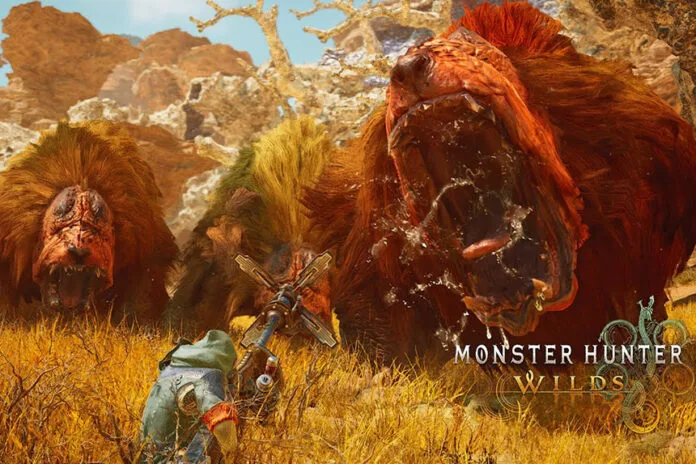
The wait is finally over as Monster Hunter Wilds – One of the massive action role-playing games is out now. This new game has already entered the list of Steam’s top ten concurrent players list. Unfortunately, a lot of players are still struggling to get into the game as they are experiencing that the game is not launching at all. If you are one of them, this comprehensive guide will show you all potential methods to resolve it so that you can get into the game and enjoy playing like many other players.
How to Fix Monster Hunter Wilds Not Launching
The game not launching is one of the common issues and nothing to worry about. It happens with most of the modern online games including Monster Hunter Wilds. Go through and try all the below workarounds one by one to fix this annoying issue.
1. Restart Steam Multiple Times
This is one of the solutions you should try. Many players report that sometimes Steam fails to properly launch the game due to temporary issues. To resolve it, try restarting Steam multiple times to fix the issue. This simple trick has helped several players to get into the game in no time so give it a try.
2. Delete or Rename Reframework DLL (If Installed)
ReFramework allows developers to create powerful mods and plugins for games using the RE Engine. However, it can cause compatibility issues so try deleting it or renaming it. Here is how you can do it:
- Go to the folder where the game is installed on your PC
- Find for a file named reframework.dll
- Delete the file or move it to another location as a backup
- If you have dinput8.dll in the folder, rename it to dinput8. off
- At last, restart Steam and relaunch the game.
3. Wait for Shader Compilation
When you launch the game for the first time, the game takes some time to compile shaders. That eventually causes delays or looks like the game is stuck. If that is the case, simply wait for some time until the shader compilation process completes. Waiting patiently has worked for some players so try it.
4. Update Graphics Drivers
The next solution many players recommend is to update your graphics drivers. Outdated drivers can cause several issues with the game including not launching. So, it is always advisable to update your graphics drivers before launching any new online game. For that: Go to the official website of the manufacturer of your graphics drivers and install the latest version. After doing that, reboot your PC and relaunch the game.
5. Delete crashreport.exe and crashreportDLL.dll
Some players fixed the game not launching issue by deleting specific crash report files from the game folder. This prevents Steam from running the crash report tool, which might be interfering with the game launch. Here is how you can delete these files.
- Go to the folder where the game is installed on your PC
- Find and delete the following files:
- crashreport.exe
- crashreportDLL.dll
- Restart Steam and relaunch the game.
6. Disable Integrated GPU
Just in case your system has both an integrated GPU (like Intel HD Graphics) and a dedicated GPU (like an NVIDIA/AMD card), the game might be trying to launch on the wrong GPU. Here is how you can disable integrated GPUs. NOTE: Do NOT disable your dedicated GPU (NVIDIA/AMD), only the integrated one.
- Go to your PC’s settings by pressing Win + X and select Device Manager
- Expand Display adapters
- Right-click on the integrated GPU (Intel HD Graphics, etc.) and select Disable Device
- Reboot your PC and relaunch the game.
7. Uninstalling GeForce Experience (For NVIDIA Users Only)
Some players reported that GeForce Experience is the main culprit that causes not launching issues. So, try uninstalling it to fix the issue. Here is how to do it:
- Press Win + R, type appwiz.cpl, and press Enter
- Find NVIDIA GeForce Experience, right-click, and select Uninstall
- Restart your PC and try launching the game.
That’s all for this guide. Hopefully, one of these methods helped you to fix the Monster Hunter Wilds not launching issue.
