

Avowed is out on early access starting today, with the full launch scheduled for 18 February. Early players reported issues such as Avowed crashing, not launching, and being stuck on the loading screen. If you find yourself experiencing these issues, here are some fixes that can get the game running.
Fix Avowed Crashing, Not launching, and Stuck on Loading Screen
Most problems arise due to the PC not meeting the minimum requirements to play the game. If you are above the minimum specifications, these are the fixes you can try.
Reboot the PC
A simple reboot may resolve the crashing issues if you have just downloaded the game and have not rebooted the PC. So, go ahead and reboot the PC before attempting the other fixes.
Ensure the Game is Installed on an SSD
Most modern games require to be installed on an SSD for faster processing and due to the demanding nature of this game, move the game to the SSD drive if you have not already.
Verify Game Files
While installing the game, some files may have gotten corrupted. Both the Xbox App on PC and the Steam provide features to verify and repair the game files quickly. Here are the steps for both.
Verify and Repair on Xbox App
- Open the Xbox Game Pass library and click on Hellblade 2
- Click on the three dots next to Play and choose Manage
- Go into Files and click on Verify and Repair.
- Wait for the process to complete.
Verify the Game Files on Steam
Steam Library > right-click on Hellblade 2 > Properties > Installed Files > Verify Integrity of Game Files
Delete the Save & Config File
An issue with the config file of the game can also lead to a lot of issues such as Avowed crashing. Before you delete the save and config file, ensure that you have taken a backup of both.
Edit the Game Settings (If the Crashing is In-Game)
If you can acess the game settings, there are a bunch of things you can do to imporve the game’s performance and avoid crashes. Here are a list of things you need to do:
- Change to Windowed Mode or Fullscreen
- Lower the Resolution
- Limit the FPS to 60
- Disable Vsync
- Lower the Graphics Settings
Clean Install the GPU Driver
If you already have the latest graphics driver, make sure that you have performed a clean install. If not, do it now. Downlaod the latest GPU Driver and during the installation process, choose to Custom Install and then check the field for ‘Perform a clean install.’ You can downlaod the GPU drivers from the below links.
Revert the Overclock
Avowed crashing may be due to the overclocks you have performed. UE5 does not handle overclocks very well. If you have performed any overclocks, revert it and check if the game works. If you use an Intel CPU, particularly a 13th Gen processor, the next fix may help you the best.
Lower Performance Per Core Tuning (Intel CPUs)
Recently, a lot of Intel CPUs have been crashing in game, espcially with the memory error. One of the solutions that has been effective in resolving these crashes is to lower the per core tuning in Intel CPUs. For this, you will need to download the Intel Extreme Tuning Utility. Once you have downloaded and installed the software, go to the “Performance Core Ratio” and lower it from 55x to 54x.
Enter Steam Launch Options
The next fix you can try is to force the game to run on DirectX 11 and DirectX 12. Go to the game Peroperties in Steam > General > Launch Options. Enter the launch option -dx11 and close the window. Now, attempt to play the game. If the game still crahses, paste -dx12 and close the window. Now, try to play the game. If the game is still failing to start, try the next fix.
Install Microsoft Visual C++ Redistributable
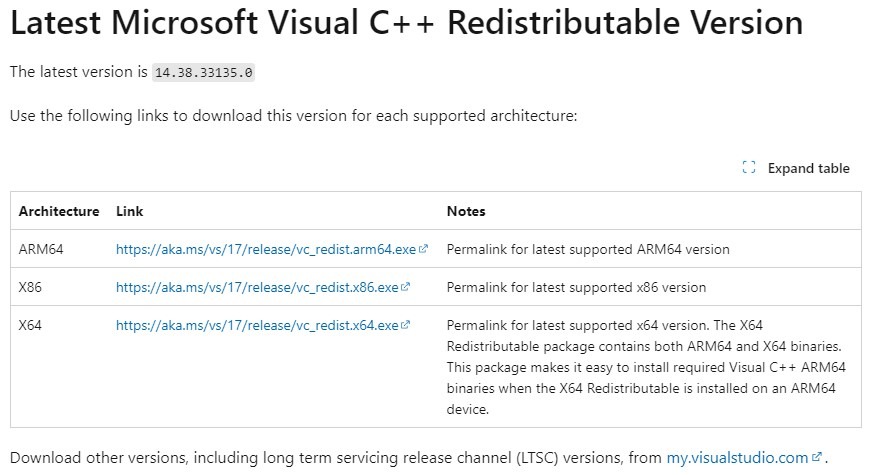
If there is an issue with the Microsoft Visual C++ Redistributable, the game will not start. Go to the MS website for Microsoft Visual C++ Redistributable and downlaod both the x86 and x64 versions and install them.
Unplug All External Devices
External devices can cause a lot of issues in games. Ensure that all external devices are disconnected such as controllers, joysticks, multiple monitors, Razer Tartarus, Hotas, Wheel, Pedals, etc.
Perform a Clean Boot
Besides the external devices, third-party programs can also cause issues in games. Programs such as Razer Synapse, MSI Dragon Center, Corsair Software, and more. You can perform a clean boot to disable all third-party programs and then launch the game. Here are the steps you need to follow.
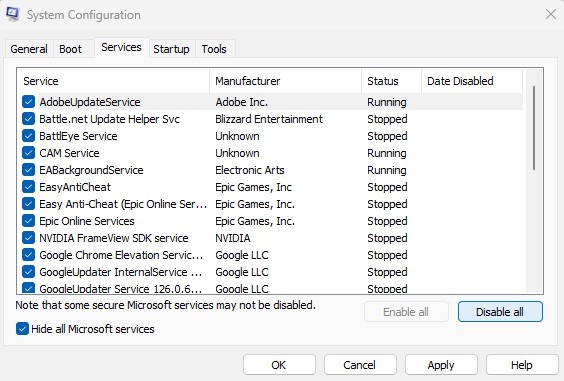
- In the Widnows Search, type Run and open it
- Write msconfig and hit Enter
- Go to the Services tab and check Hide All Microsoft Services
- Now, click on Disable All
- Go to the Startup tab and open Task Manager
- Disable all startup tasks, one at a time
- Reboot the PC.
Once the PC boots up, run the game and check if Avowed is still crashing on startup or is stuck at loading screen. If the problem still persists, try the next fixes.
Disable Steam Overlay
You must disable all overlays, but the clean boot takes care of most software except the Steam client. To disable the Steam Overlay, go to Avowed Properties > General > toggle off ‘Enable the Steam overlay while in-game.’
Increase the Virtual Memory
The next fix you can try is to increase the virtual memory so the game has more VRAM that it can use and could prevent crashes in case the game is poorly optimized or the VRAM is running out. Here are the steps you can follow.
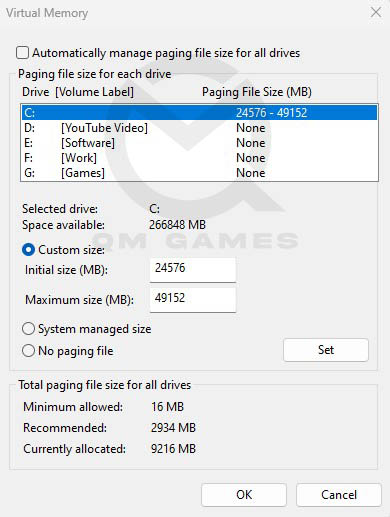
- In the Windows Search, type and click on View Advanced System Settings
- In Advanced, under Performance, click on Settings
- Go to the Advanced tab and click on Change under Virtual Memory
- Uncheck Automatically manage paging file size for all drives
- Check Custom Size and enter the below values
- Initial Size (MB) – 1.5 X Total RAM (For 16 GB RAM, 16 x 1024 MB = 16,384 MB, 16,384 MB x 1.5 = 24,576 MB)
- Maximum Size (MB) – 3 X Total RAM (For 16 GB RAM, 16 x 1024 = 16, 384 MB, 16,384 MB x 3 = 49,152 MB)
- Click on Set and OK.
Run the Game As Admin, In Compatibility Mode, and Disable Fullscreen Optimizations
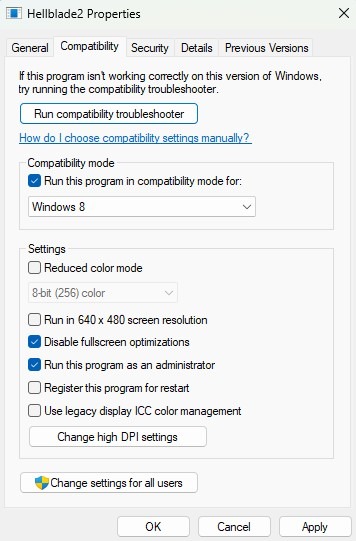
Try running the game in compatibility mode and as an admin to fix the Avowed crashing and stuck on loading screen. Here are the steps you can follow.
- Open Steam Library > Right-lick on Avowed > Properties > Installed Files > Browse > find the Avowed Application file
- Right-click on Avowed executable > Properties and go into Compatibility
- Check Run the program as an administrator > Apply > Ok (try to run the game. If the game does not work, go back)
- Check Run this program in compatibility mode for and set it to Windows 8 > Apply > Ok (if the game still fails to launch)
- Go back and check Diable fullscreen optimizations > Apply > Ok
Set Exception for the Game on your Antivirus/Windows Defender/Widnows Firewall
If the Widnows Defender/Firewall is seeing the game as a malware, it may prevent it from launching. Ensure that you have created an exception on your antivirus porgram as well as the Widnows Defender and Firewall. We have an article that shows the steps for all antivirus and firewall and to set exception. Click the link for steps.
Reinstall the Game
Finally, if none of the above fixes have helped to resolve the Avowed crashing on startup and stuck on loading screen, you may need to uninstall the game. Uninstall the game and delete the game folder from:
- C:\Users\YOURUSERNAME\AppData\Local
- If there is a game folder in Documents
- C:\Program Files (x86)\Steam\steamapps\common
Reinstall the game from scratch and attempt to launch the game. Hope that these fixes helped resolve the issue. We will update this post with new fixes as we test the game further.
